3D models
Conception in blender
View statistics (number triangles / objects)
In blender, you can see the number of triangles, click on viewport overlays, and click on statictics, you can now see the statistics.
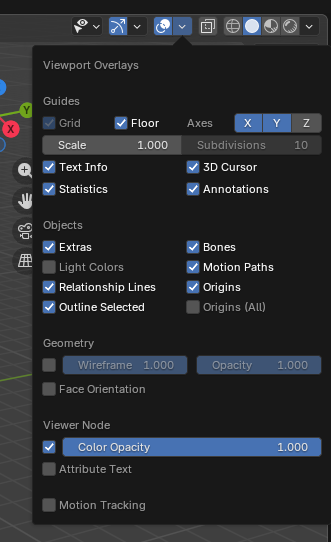
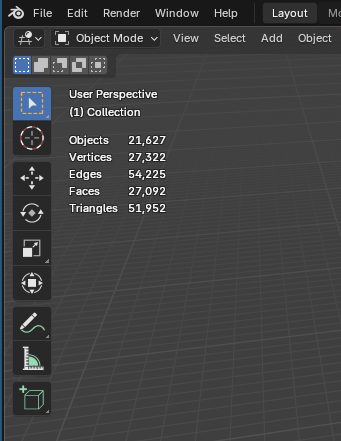
One mesh
Each .blend file must have only 1 mesh, or 1 logical group.
This avoids "who touched what" conflicts in version control.
LOD (Level Of Detail) management
In the goal to keep performance in the game, we need to have 4 LOD.
One you have created your mesh, rename it with the suffix _LOD0.
Duplicate it with alt + D or in menu Object > Duplicate Linked and rename it with suffix _LOD1. Repeat the duplicate for _LOD2 and LOD3.
On _LOD1, _LOD2 and _LOD3, add the modifier Decimate. Apply the ratio like this table:
| LOD | Decimate Ratio | Triangle target |
|---|---|---|
| LOD0 | 1.0 — no decimate | 100% |
| LOD1 | 0.5 | ~50% |
| LOD2 | 0.15–0.2 | ~15–20% |
| LOD3 | 0.05 | ~5% |
textures
Never embed textures inside the .blend, keep them as sidecar files so they can be updated without opening Blender
A material reused across several models does not live next to its .blend at
all. It is published once into the shared library and assigned by Godot at
import time, which is what stops the same texture from existing in four copies
across the repository. Read Materials to find out which of the
two flows your material belongs to. The rest of this section covers
model-specific materials.
This is the procedure to manage textures:
When adding a texture the first time, in the Shader Editor, add an Image Texture node → click Open → navigate to your assets_blender/.../ folder and select the .png file there. Blender will store a relative path automatically as long as the .blend has already been saved once alongside the textures.
Check a texture is external (not packed): look at the Image Texture node header. If you see a small floppy disk icon with a dot on it, the image is packed. If it shows just the filename, it's external.
To unpack an already-packed texture:
- Go to File → External Data → Unpack Resources
- Choose "Write files to current directory" (this places them next to the
.blend) - Then move them to your proper
assets_blender/…/folder and re-link (see Files Structure page)
To re-link a texture after moving it: In the Image Texture node, click the folder icon next to the image name → navigate to the new path. Or use File → External Data → Find Missing Files to bulk-fix broken paths across all materials at once.
Make all paths relative (important for team/version control): go to File → External Data → Make All Paths Relative. This converts all absolute /home/you/project/... paths to //relative/... paths, so the .blend works on any machine as long as the folder structure is preserved.
The simplest rule: textures live in the same folder as their .blend, or in a subfolder of it. For your structure that means:
- assets_blender/structures/buildings/houses/
- house_colonial_2f.blend
- tex_house_colonial_2f_albedo.png
- tex_house_colonial_2f_normal.png
- tex_house_colonial_2f_roughness.png
Export to Godot
Once finished, export for Godot.
File > Export > glTF 2.0 (.glb/.gltf)
Choose the format glTF Binary (.glb) (single file, everything packed in. Best for most use cases).
This is the recommended Settings Panel:
🔵 Include
| Option | Setting |
|---|---|
| Limit to | Selected Objects (if you don't want the whole scene) |
| Data > Mesh | ✅ UVs, Normals, Vertex Colors |
| Data > Armature | ✅ Export Deformation Bones Only |
| Data > Skinning | ✅ Enable |
If your model contains blend shapes (shape keys / morph targets), the Data > Armature > Export Deformation Bones Only option must be enabled — exporting non-deforming bones will lead to incorrect shading in Godot.
🟢 Transform
| Option | Setting |
|---|---|
| +Y Up | ✅ Enable this — Godot uses Y-up, Blender uses Z-up |
You can check Transform > +Y Up and other options from the built-in glTF exporter panel.
🟡 Geometry / Mesh
| Option | Setting |
|---|---|
| Apply Modifiers | ✅ Enable (bakes modifiers into the mesh) |
| Normals | ✅ Enable |
| UVs | ✅ Enable |
| Vertex Colors | ✅ if used |
| Compression (Draco) | ❌ Avoid — Godot doesn't support Draco decompression natively |
🟣 Material
| Option | Setting |
|---|---|
| Materials | ✅ Export |
| Images | None, but only for a model using shared library materials |
A model whose materials come from the shared library exports with Images:
None. The .glb then carries the material names and no pixels at all, and
Godot assigns the real materials at import time. Exporting the images would ship
a second copy of textures that already live in the library, which is exactly what
the library exists to avoid. A model with its own model-specific textures keeps
the default. See Materials.
🟠 Animation (if exporting animated objects)
| Option | Setting |
|---|---|
| Animation | ✅ Enable |
| Export NLA Strips | ✅ Enable — this separates animations by name in Godot |
| Bake Animation | ✅ Enable if you have complex drivers or constraints |
| Sampling Rate | 1 (default is fine) |
| Optimize Animation | ✅ Recommended |
When exporting with animations, use NLA Strips mode — each strip in the NLA Editor becomes a separately named animation track in Godot, which is what allows the AnimationPlayer to recognize them individually.
🔴 Before Exporting — Critical Checklist
- Apply all transforms (
Ctrl+A > All Transforms) on both mesh and armature. Incorrect scale or rotation on an armature is the #1 cause of weird deformation issues in-engine. - Check origin points — objects floating in Godot is often caused by a misplaced origin in Blender.
- Materials: Use Principled BSDF nodes. The exporter supports Metal/Rough PBR (core glTF) and Shadeless (KHR_materials_unlit) materials, and constructs a glTF material based on the nodes it recognizes in the Blender material.
- Textures must be in PNG or JPEG format — other formats are auto-converted on export.
- One UV map per object. The export keeps the map flagged render — the camera icon in
Object Data Properties → UV Maps — which is not necessarily the one you edited. A part separated
with
Pinherits the body's UV maps, so the duplicate is easy to acquire without noticing. Select the extra one and delete it with–. - Check face orientation. Overlays → Face Orientation: blue = front, red = back.
The last two are worth knowing by their symptoms, because neither reads as a UV or a normal problem when you hit it in Godot:
| What you see in Godot | What it actually is |
|---|---|
| A surface in one flat colour, as if the texture never arrived — while Blender shows it correctly | The export used the other UV map. In the game file the UVs are collapsed to a point, so the whole surface samples a single pixel of the texture |
| A surface you can see through, or that looks "textured from the inside" | Its faces are inverted. Godot culls back faces, so you are looking at the inside of the mesh |
❌ Faces pointing away from the viewer show red:
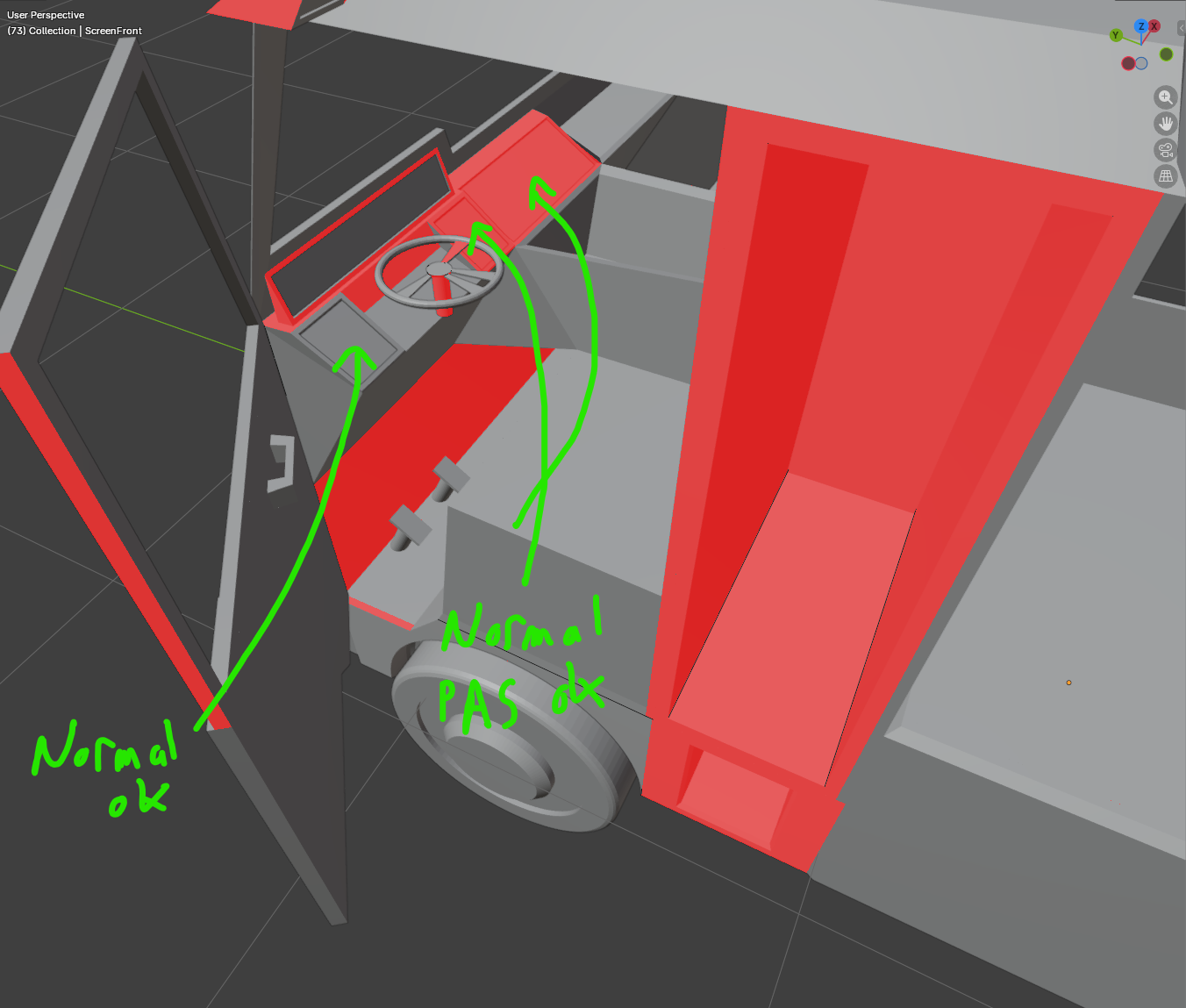
✅ The same faces once fixed show blue:
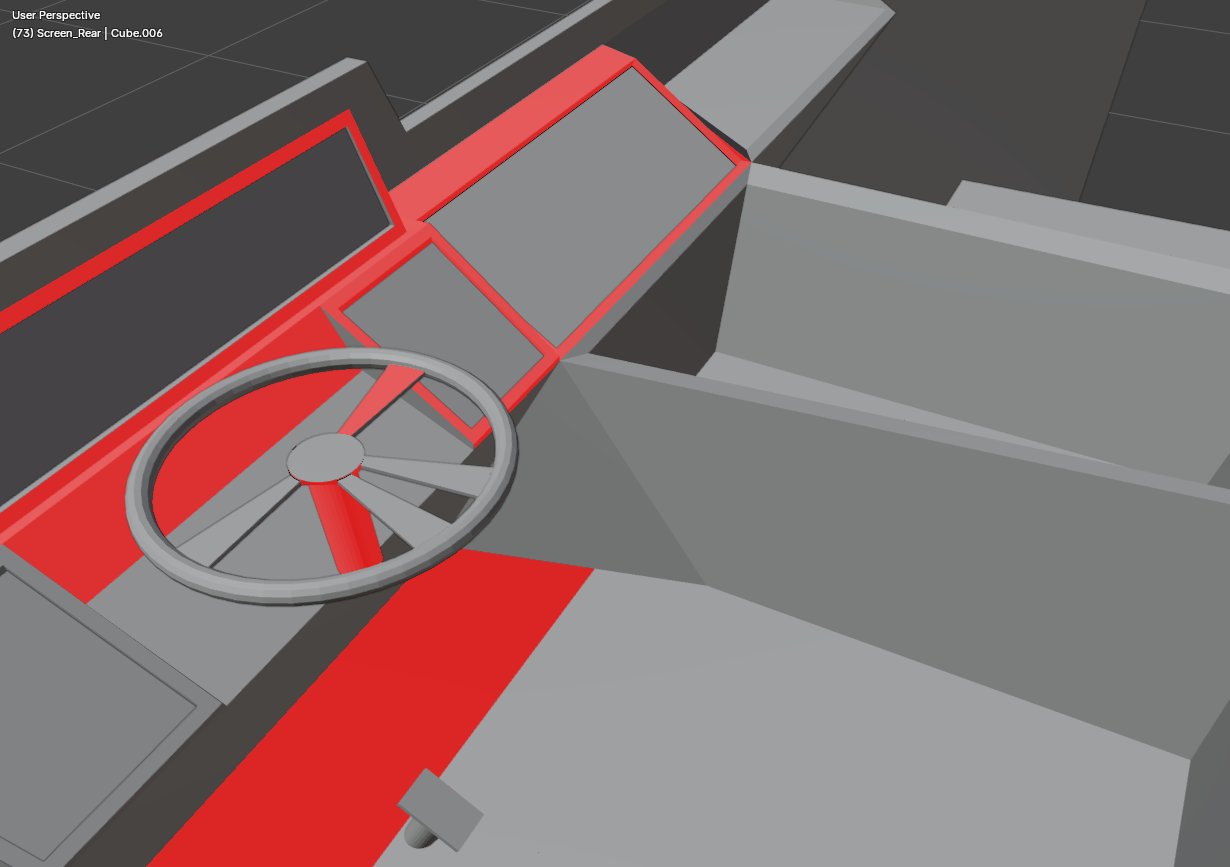
Fix a red surface in Edit Mode with Shift+N (Recalculate Outside); on a thin plate, where "outside"
is ambiguous, use Alt+N → Flip instead. Turn the overlay off afterwards — left on, it paints
everything blue and hides your textures.
A screen face (dashboard, mirror feed) must fill the 0→1 square exactly: select that face alone
and use U → Reset, never Unwrap or Cube Projection. Unwrapping a whole object at once takes the
screens with it and the feed comes out hugely magnified, showing one corner of the image.
See Vehicle models for the full screen recipe.
Tip: Save as Export Preset
Once you've configured everything, click the ➕ operator preset button at the top of the export panel to save these settings as a reusable preset (e.g., "Godot Export"). This avoids reconfiguring every time.
Import in Godot
Once 3d model exported, open godot, you will have the file with extension .glb.
Open it, and you will have the import window.
On Scene, be sure to uncheck Generate LODs.
On each MeshInstance3D with the suffix _LOD0, _LOD1, _LOD2 and _LOD3, set the right fields (Visibility Range Begin and Visibility Range End):
| Category | Examples | LOD0 | LOD1 | LOD2 | LOD3 |
|---|---|---|---|---|---|
| Tiny | coins, bolts, leaves | 0–0.5m | 0.5–2m | 2–5m | 5-8m |
| Small | cups, rocks, bottles | 0–1m | 1–5m | 5–15m | 15-25m |
| Medium | chairs, barrels, crates | 0–5m | 5–20m | 20–50m | 50-80m |
| Large | cars, trees, statues | 0–15m | 15–40m | 40–80m | 80-150m |
| Huge | buildings, terrain chunks | 0–30m | 30–80m | 80–200m | 200-400m |
| Massive | mountains, skybox elements | 0–100m | 100–300m | 300–800m | 800-1500m |
Then click on Import or Reimport button.
Practical Tips
- Transparent / alpha objects (leaves, fences) switch to a flat billboard at LOD2 or LOD3